
Chrome kiosk mode, in the sense privacy-conscious users actually need, means a managed, time-limited Chrome or Edge session with built-in privacy and navigation controls, not a permanent lockdown. If you need temporary, controlled access for research, testing, or getting around a restricted network, the fastest path is to run a short managed session through a suitable tool and check whether the controls fit your situation before committing to anything longer.
TL;DR:
- Most managed sessions rely on strict session TTL and server-side invalidation to ensure complete tearing down of the environment, unlike incognito mode, which only clears local data.
- Isolated, ephemeral sessions destroy all execution environments and fingerprint data at expiration, offering stronger privacy even against forensic recovery methods.
- Check that the tool enforces TTL, uses secure cookie flags, generates unique session fingerprints, and routes network traffic properly before trusting its privacy claims.
- Developers can embed these controls into custom tools using platforms like Project Z, which offer session creation, revocation, and isolation via APIs.
- To verify a managed session’s privacy, run a short test, confirm TTL and environment teardown, and ensure fingerprint changes between sessions.
Table of Contents
- Why Ephemeral Managed Sessions Beat Incognito for Privacy
- What Controls Actually Make a Session Safe?
- How Do You Start and End a Managed Session?
- Security Best Practices for Managed Browser Sessions
- How Scriptnovaa's Tools Map to These Controls
- What Actually Matters Here (And What Doesn't)
- Try a Managed Session Before You Trust One
- Sources
- FAQ
Why Ephemeral Managed Sessions Beat Incognito for Privacy
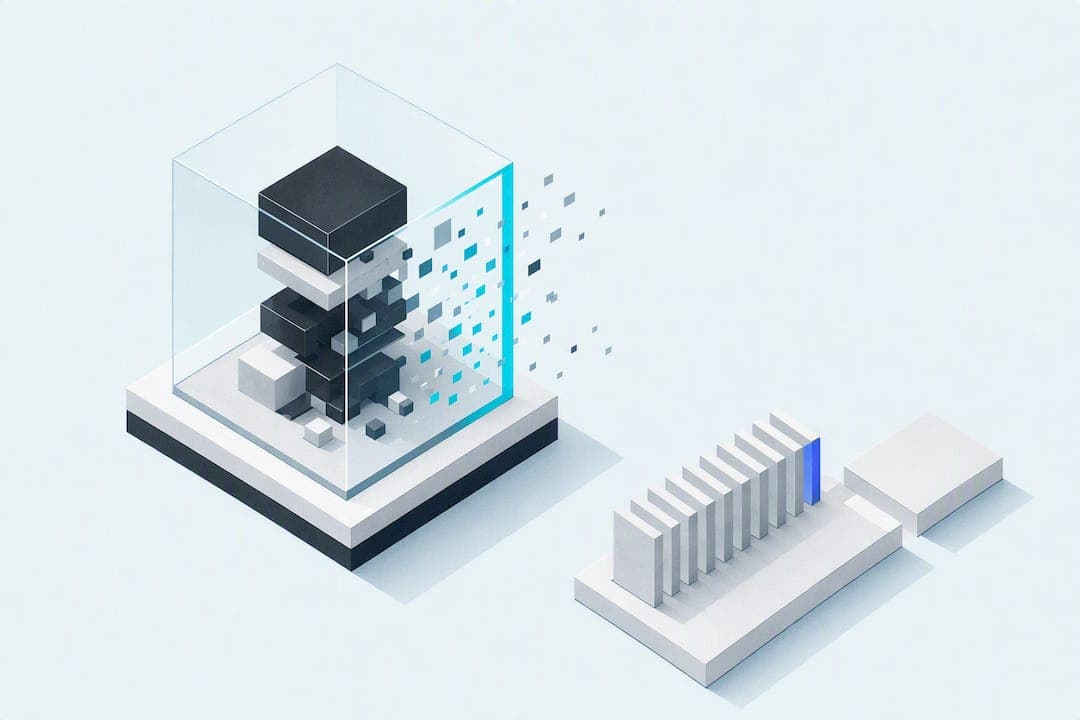
Incognito mode cleans up your local browser history. It does not touch what happens at the execution layer, and that gap is where most privacy assumptions fall apart. A managed session works differently: it isolates execution away from your device and destroys the entire environment, cookies, cache, fingerprint data, and all, when the session ends rather than just wiping a local folder.
That distinction comes from how browser isolation removes execution from the endpoint, which stops in-session manipulation that survives a simple history clear. Research into ephemeral browsing systems backs this up with harder evidence: a project called the Incinerator found that true ephemeral sessions require memory zeroization and randomized per-session fingerprints to resist forensic recovery, something ordinary incognito mode was never built to do.
What that means in practice:
- Incognito clears history locally, but leftover session tokens and fingerprint data can persist elsewhere.
- Ephemeral, isolated sessions destroy the entire execution environment, not just your browser's cache.
- Fingerprint randomization per session prevents cross-site tracking from linking one visit to the next.
A session that's merely "cleared" is not the same as one that's been torn down at the architecture level. That difference explains why managed sessions can provide stronger privacy.
What Controls Actually Make a Session Safe?
A managed session is only as private as the technical controls running underneath it. Before trusting any kiosk-style tool, check for these five things:
- Session TTL and auto-expire. Every session should carry a time-to-live value that forces expiration automatically, not just an option to log out manually.
- Server-side session invalidation. Logging out or hitting TTL should trigger a destroy command on the server, not just a local browser close. Proper session management requires server-side invalidation alongside secure cookie handling.
- Secure cookie flags. Look for HttpOnly and Secure flags on session cookies, plus a bounded maxAge, so a stolen cookie can't be replayed indefinitely.
- Fingerprint and container isolation. Each session should generate its own fingerprint and run in its own isolated container or process, not share a profile with your everyday browsing.
- Network routing choices. Whether the session runs through a proxy, an edge node, or cloud rendering changes what a network observer can see, so check which model a tool uses before relying on it.
A quick mental checklist: does the tool state a TTL? Does it confirm server-side destroy, not just a client-side close button? Does it isolate fingerprints per session instead of reusing your regular profile? If you can't answer yes to those three, treat the "kiosk mode" label with skepticism.
Pro Tip: Ask any managed-session tool one direct question: "What happens to my session data the moment TTL expires?" A vague answer usually means cleanup is cosmetic, not architectural.
How Do You Start and End a Managed Session?
Setting one up should take less time than reading this paragraph. Here's the flow:
- Launch the session. Open the managed-session tool and start a new instance rather than reusing a saved profile.
- Choose duration and controls. Set your TTL and pick which navigation or privacy controls you want active, ad blocking, extension restrictions, download limits.
- Set network or exit options. Decide whether you want proxy routing, cloud rendering, or a direct connection, depending on your threat model.
- Use the session normally. Browse as you would in any tab. The isolation happens behind the scenes.
- End it, or let it auto-destroy. Either log out explicitly or let the TTL expire; the server should issue a destroy command either way.
- Verify teardown. Confirm the environment is gone, not just closed.
A short verification checklist worth running after any session ends:
- No cookies persist from that session in your browser.
- A new session generates a different fingerprint than the last one.
- No cached files or local artifacts remain tied to that session.
Experts who study session security note that people often default to reusing a single browser profile for everything, personal accounts, testing, research, which causes profile leakage across contexts that should stay separate. Independent execution environments avoid that problem entirely.
For developers building integrations, the expectation is simple: an API that can start a session, issue a revocable token, attach basic session metadata (TTL, creation time, isolation mode), and expose a revoke endpoint that actually triggers server-side destruction, not just a client flag flip.

Security Best Practices for Managed Browser Sessions
Short TTLs are an effective lever to limit the window an attacker has to reuse a leaked token, and enforcing a limited session lifetime matters more than many other settings.
Beyond TTL, a few practices consistently separate a genuinely private session from one that only looks private:
- Confirm server-side invalidation is atomic with token revocation. If revoke and destroy happen as separate steps, there's a race window an attacker can exploit.
- Verify cookie flags directly. HttpOnly and Secure flags, paired with a bounded maxAge, are baseline requirements according to Snyk's session management guidance, not optional extras.
- Disable WebRTC and block browser extensions inside ephemeral sessions. Both can leak identifying data even when cookies are clean.
- Prefer isolated or cloud-rendered execution over local rendering. Content that never touches your device's execution layer can't leave artifacts on it, a principle cloud- and edge-rendered isolation for schools relies on for classroom and shared-device safety.
If you suspect a session has been compromised, the response is straightforward: revoke the token immediately, rotate any credentials used during that session, and review server logs for anomalous activity tied to that session ID.
Pro Tip: Treat every managed session like a hotel room key: it should stop working the moment checkout happens, not whenever you get around to canceling it.
How Scriptnovaa's Tools Map to These Controls
Scriptnovaa's Share Browser is built around exactly this model: an HTA-based launcher that spins up timed Chrome or Edge sessions with customizable browsing controls, rather than a permanent, always-on browser profile. The platform's feature set is designed so the timed-session and control layer described above, TTL enforcement, isolated fingerprints, controlled navigation, aren't abstract concepts but settings you actually configure before a session starts.
For developers who want a lighter footprint, Project Z offers an embedded browser option suited to building custom, isolated session experiences directly into other tools rather than relying on a full standalone launcher.
What Actually Matters Here (And What Doesn't)
Most advice on this topic focuses on the wrong layer. People obsess over clearing cookies and switching to incognito, then wonder why fingerprinting or tracking still catches up with them. The uncomfortable truth is that local cleanup was never the control that mattered. Execution isolation and server-side destruction are.
Where I'd push back on conventional wisdom: a lot of "privacy tips" treat kiosk-style browsing as a novelty for shared computers, when it's actually a legitimate model for anyone who wants a browsing session that doesn't accumulate liability over time, students on shared networks, developers testing across environments, anyone tired of a browser profile that remembers everything indefinitely.
If you take one thing from this, prioritize verifying TTL enforcement and server-side teardown before anything else. A tool with a dozen privacy features and no real session destruction is theater. A tool with strict TTL, atomic revocation, and isolated fingerprints, even with a plainer feature list, is doing the actual work. Start there, then evaluate everything else.
— David
Try a Managed Session Before You Trust One
The only real way to know whether a managed session fits your privacy requirements is to run one and watch what happens when it ends. Some managed session tools give you a timed Chrome or Edge session with configurable controls upfront, not a settings menu you have to hunt through after the fact, which matters if you're testing this on a deadline or a shared machine.
A few places to start:
- Try the 10-minute online demo to run a timed session and watch it expire in real time.
- Review the full feature set to see which controls you can configure before launch.
- Check out Project Z if you're building your own embedded, isolated browsing experience.
Run a short session first. Confirm the TTL expires when it says it will, confirm your fingerprint changes on the next launch, and only then decide if it covers what you actually need.
Sources
- Session management security | Snyk blog
- The Incinerator — ephemeral browsing shredding research (Kathon) | GitHub
- Browser Isolation For Schools: Browser Isolation Guide (2026) - Sendwin
FAQ
What Does "Chrome Kiosk Mode" Mean in This Context?
Here, it refers to a managed, time-limited Chrome or Edge session with built-in privacy and navigation controls, launched through a tool like Share Browser, rather than a device-lockdown feature.
How Is This Different From Incognito Mode?
Incognito clears local browser history, but a managed session isolates execution entirely and destroys the environment on expiration, which prevents fingerprint persistence and token reuse that incognito can't stop.
What Should I Check Before Trusting a Managed Session Tool?
Confirm it enforces a session TTL, performs server-side invalidation on logout or expiration, uses HttpOnly and Secure cookie flags, and isolates fingerprints per session.
Can Developers Integrate Managed Sessions Into Their Own Tools?
Yes. Tools like Project Z offer an embedded browser model that developers can build into custom applications needing isolated, time-limited sessions.
How Do I Try This Without Committing to Anything Long-Term?
Run the free online demo, which launches a short timed session so you can verify the controls and teardown behavior firsthand.