
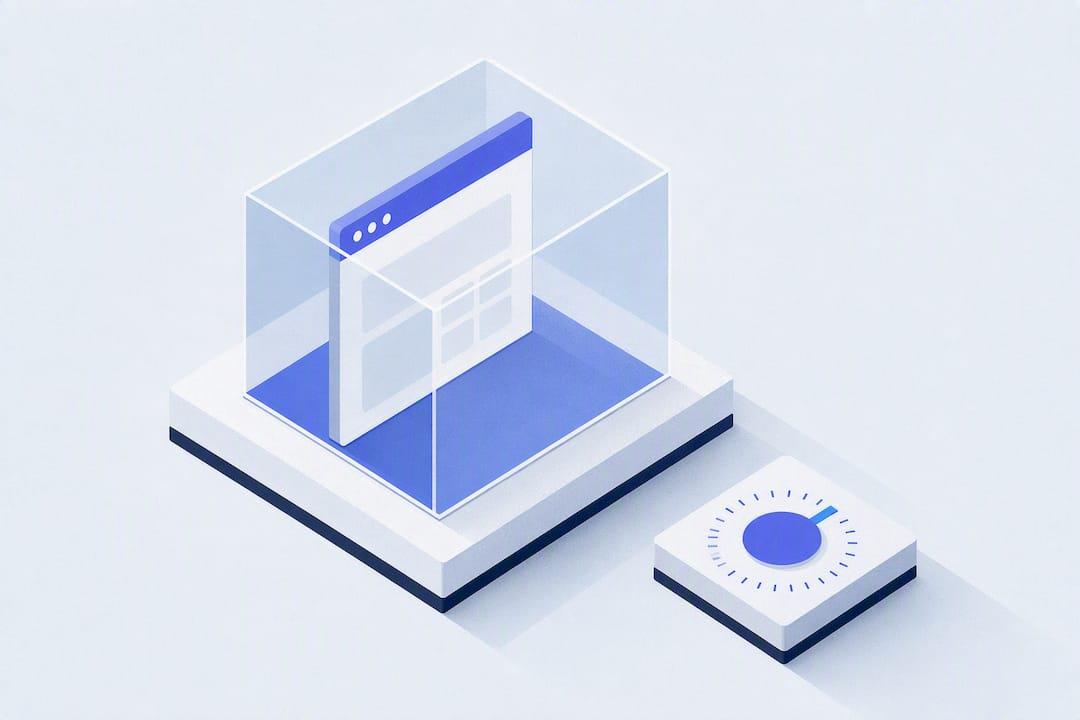
Remote browser isolation, in the sense that matters to most people searching the term, is a managed, time-limited Chrome or Edge session that runs in a separate, controlled environment instead of your regular browser. It exists for privacy-conscious users, students stuck behind locked-down networks, and developers who need disposable browsing sandboxes. If you want a working option today rather than a theory lesson, tools like Scriptnovaa's Share Browser and Project Z already do this.
TL;DR:
- Managed, time-limited browser sessions start on demand, automatically expire, and have controls like clipboard, download, and print restrictions.
- Session controls such as disabling copy-paste, blocking downloads and prints, and setting fixed or extendable durations are crucial for privacy or testing purposes.
- These sessions do not hide your IP address or prevent site recognition if you log into accounts, meaning they are not suitable for full anonymity.
- Most services operate through clientless browsers without installation, but traffic inspection may interfere with some security features.
- Testing a session with a short demo can reveal if controls work as advertised before committing significant points or subscriptions.
Table of Contents
- What "Remote Browser Isolation" Means Here (And What It Doesn't)
- How Timed Browser Sessions Actually Work
- Which Session Controls And Settings Actually Matter
- Who Actually Needs This, And Who Doesn't
- What Isolation Protects, And What It Doesn't
- How To Try A Managed Session In Ten Minutes
- What Nobody Tells You About Managed Sessions
- Try A Managed Session Built For This Exact Job
- Sources
- FAQ
What "Remote Browser Isolation" Means Here (And What It Doesn't)
The phrase gets used two different ways online, and mixing them up causes real confusion. This article covers the consumer and developer version: a managed, unblocker-style session that runs on a time limit, with session controls layered on top, meant for someone who wants a private or temporary browsing environment. It is not the enterprise security category that renders webpages on a remote server to shield corporate devices from malware, which shows up in a lot of cybersecurity content under the same name.
Both use similar plumbing (a browser running somewhere other than your local machine), but the goal is different. One protects a company network from threats. The other gives an individual a controlled, disposable session for privacy, access, or testing.
What you should expect from a product in this category:
- A session that starts on demand and expires automatically after a set time
- Controls over clipboard, downloads, printing, and sometimes the address bar
- No lasting footprint on your actual device once the session ends
- Either a managed sign-in flow or a clientless, no-install option depending on the service
How Timed Browser Sessions Actually Work
A session starts when you spend points, tokens, or a subscription credit to request access, and a timer starts counting down the moment the browser window opens. Everything you do inside that window happens in a contained instance of Chrome or Edge, separate from your normal profile and history.
During the session, the service can toggle specific controls: clipboard access can be disabled so nothing copies out, printing can be blocked, downloads can be restricted or logged, and in some setups the address bar itself is hidden or locked to prevent navigation outside an approved scope. Cloudflare's own documentation for clientless remote browsing lays out exactly this kind of policy control, including disabling copy/paste and print and logging HTTP and DNS activity for administered sessions.
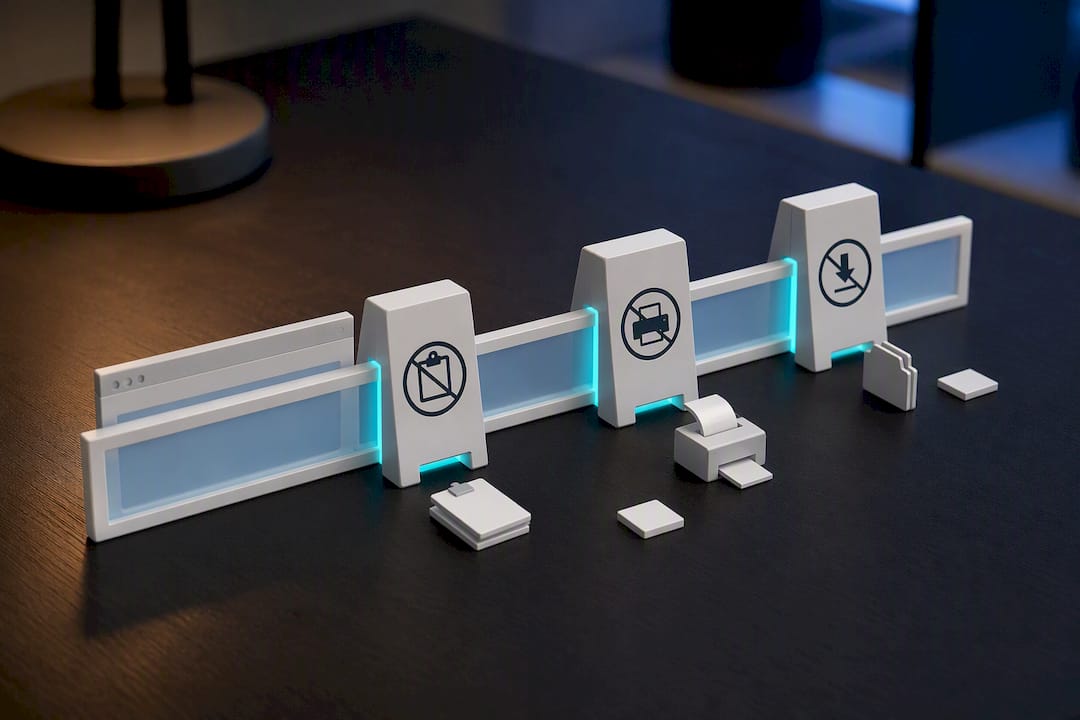
Behind the scenes, most platforms log authentication events and session activity, partly for security and partly so support teams can troubleshoot a session that misbehaves. When the timer hits zero, access gets revoked automatically. No countdown negotiation, no grace period in most designs.
A typical session lifecycle looks like this:
- You select a session duration and any available controls (clipboard off, downloads off, etc.)
- You spend points, tokens, or credits to unlock the session
- The service launches an isolated Chrome or Edge instance tied to that time window
- You browse inside the session, with restricted actions enforced live
- The timer expires and the session terminates, cutting access immediately
- Logs from the session (if kept) are available to you or an administrator, depending on the platform
Pro Tip: Set your session duration slightly longer than you think you need. A session that expires mid-task is more disruptive than a few unused minutes at the end.
Which Session Controls And Settings Actually Matter
Not every control matters equally, and picking a service (or configuring one) comes down to a short list of settings worth checking before you commit points or a subscription.
- Clipboard blocking: stops copy and paste in or out of the session, which matters if you're handling anything sensitive
- Download restrictions: prevents files from landing on your real device, keeping the session's footprint contained
- Print disabling: closes off a data-exfiltration path people rarely think about
- Screen capture limits: some services flag or block capture attempts, though this is inconsistent across platforms
- Session duration and expiry behavior: whether time is fixed, extendable, or tied to a points balance
- Clientless access: no-install, browser-based entry that works from almost any device, useful when you can't or won't install software
Cloudflare's clientless setup is a useful reference point here: it documents how admins configure permissions and HTTP policy without requiring an installed client, which is the same basic pattern smaller unblocker-style tools borrow from for their own no-install session flows.
Developers building their own launcher face a different fork in the road: HTA versus WebView2. HTA is a legacy Windows mechanism that grants a local app privileged, direct access to the OS and file system, which made it popular for early browser launchers. Most developers now lean toward WebView2 for new projects, since it renders Chromium content inside a native app with better long-term support and fewer compatibility headaches).
Who Actually Needs This, And Who Doesn't
Managed browser sessions solve a narrow but real set of problems. They're not for everyone, and knowing which side you're on saves you time and points.
- Privacy-focused browsing: keeping a work account, a personal account, and a "just looking something up" session fully separate without juggling profiles
- Students and temporary users: getting around a locked school or organization browser for a specific task, then having access disappear automatically when time is up
- Developers testing across environments: spinning up a disposable browser instance to debug a site without polluting a main profile with cookies or cache
- Guest or shared-device access: giving someone temporary browsing rights without handing them your actual accounts
Where it falls short: if you need full anonymity (hiding your IP address from every site you visit) or complete endpoint threat protection against malware, this category isn't built for that job. It solves access and separation, not invisibility.
What Isolation Protects, And What It Doesn't
Session isolation keeps your device and your browsing environment separate. It does not automatically hide your identity. Your IP address can still be visible to sites you visit unless you layer on a VPN or proxy, and if you log into an account inside an isolated session, that site still knows exactly who you are. Google's own enterprise guidance on browser separation makes this distinction directly: isolation manages sessions and reduces device exposure, but it isn't a substitute for identity-masking tools when that's actually the goal.
There's also a technical trade-off worth knowing about. Some services that offer policy-based session control need to inspect traffic (TLS decryption) to enforce rules like blocking certain downloads or sites. That inspection can occasionally break sites that use certificate pinning or other strict security checks, which is a fair trade for control but not free.
Practical mitigations if privacy is the real priority:
- Pair a session with a VPN or proxy if IP-level anonymity matters
- Use separate accounts for anything sensitive rather than logging into a primary account inside a shared or temporary session
- Avoid logged-in browsing for tasks where you specifically don't want to be identified
- Treat isolation as a containment tool, not an anonymity tool
How To Try A Managed Session In Ten Minutes
Testing a service takes less time than reading its terms of service, if you go in with a plan.
- Decide what you're actually trying to do (private browsing, bypassing a locked network, testing a site) and pick a session length that fits
- Sign up or acquire session points, then launch a timed session with your chosen controls enabled
- Test the controls directly: try copying text, downloading a file, and printing a page to confirm they behave as advertised
- Watch the session through to expiry and confirm access actually cuts off
- Check whether logs are visible to you afterward, and note how responsive support is if something breaks mid-session
A ten-minute demo is usually enough to answer whether a service's controls match its marketing.
What Nobody Tells You About Managed Sessions
The friction with managed browser sessions rarely shows up in marketing copy. Some sites break inside an isolated session because they check for cookies or local storage that a fresh, contained profile doesn't have. Latency creeps in when a session routes through extra infrastructure, and it's noticeable on video-heavy pages. Token or points management is the other quiet annoyance: run out mid-task and you're stuck negotiating with a countdown timer instead of finishing what you started.
None of that makes the category less useful. It just means the fastest safe win is picking a service with clear session logs and predictable expiry behavior, then testing it on the exact site you actually plan to use it for, before you commit points to anything longer.
Try A Managed Session Built For This Exact Job
One browser launcher built around this model is timed, managed Chrome or Edge sessions with clipboard, download, and print controls you can toggle before you launch. It aims to serve students working around locked school browsers, privacy-conscious users wanting account separation without juggling profiles, and developers looking for disposable testing environments.
For a more embedded and lightweight option, Project Z gives developers a browser they can integrate directly into their own tools rather than launching a standalone session. Students and everyday privacy users are often recommended to start with Share Browser, which includes session controls and a points system as described in this article. Points work is explained in full on the points system page if you want the mechanics before you spend anything. When you're ready to see the controls in action, the ten-minute demo is the fastest way to check whether it fits what you're trying to do.
Sources
- Cloudflare — Clientless browser isolation setup
- Google Chrome enterprise support — recommended separation practices
FAQ
What Is Remote Browser Isolation In This Context?
It's a managed, time-limited Chrome or Edge session that runs separately from your regular browser, with controls like clipboard and download blocking, built for privacy and temporary access rather than enterprise threat defense.
Does A Managed Browser Session Hide My IP Address?
No. Isolation separates your device and session data, but your IP address stays visible unless you pair the session with a VPN or proxy.
Can I Use This Without Installing Anything?
Yes, many services offer clientless access, similar in concept to Cloudflare's clientless remote browsing setup, which works through the browser without a local install.
What Does Scriptnovaa's Share Browser Cost?
Current pricing and points details are listed directly on the Share Browser page.
Should Developers Use HTA Or WebView2 For A Launcher Tool?
WebView2 is the more maintainable modern choice for new projects, while HTA remains a legacy option some older launcher tools still rely on.